Calculator Memory Keys Explained: MS, MR, MC, M+ and M−
Use Calc Pro's memory keys to store, recall and add up results. Learn MS, MR, MC, M+ and M−, plus Advanced memory with ten separate memories.
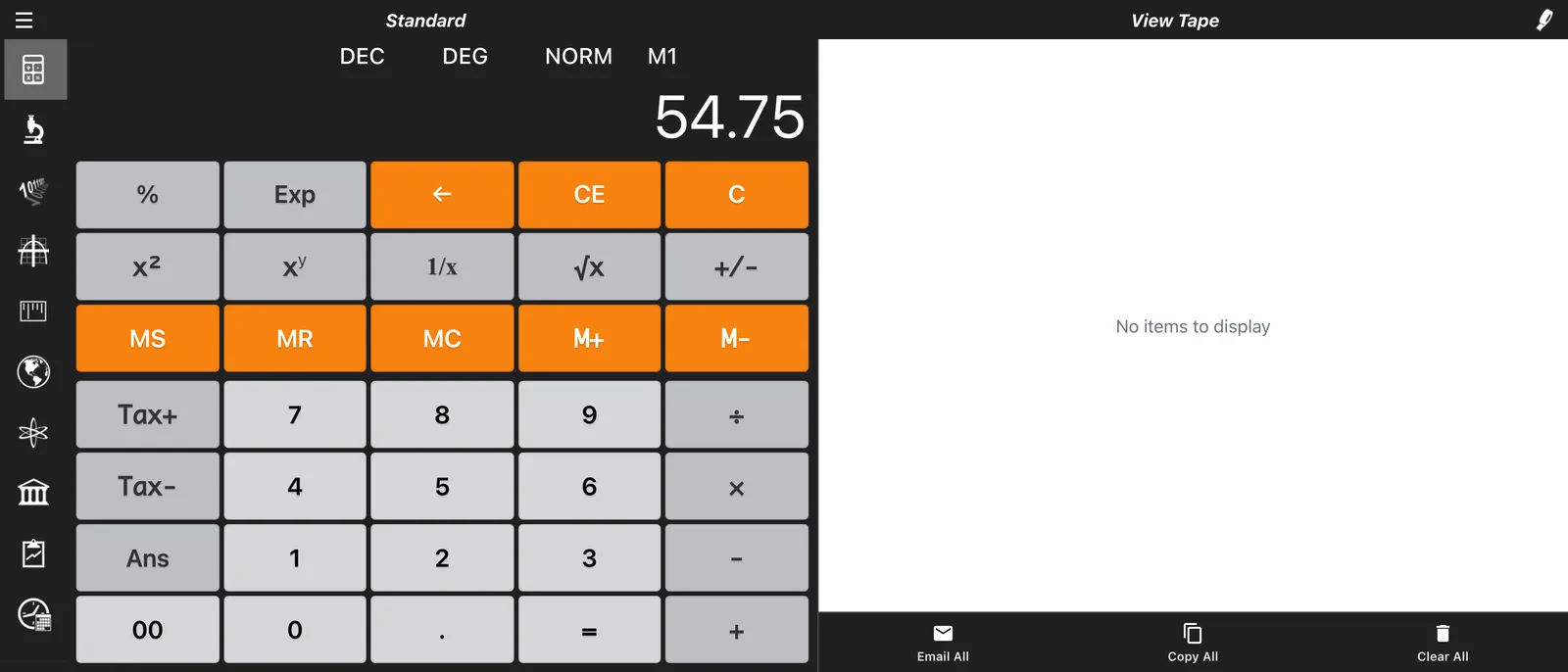
Calc Pro's memory keys let you keep a number aside while you work on something else, so you never have to write down a result and type it back in. This guide shows how to use each of the five standard memory keys, then how to use Advanced memory, which gives you ten separate memories. Every section has a worked example you can follow on the calculator.
The examples use the default Algebraic calculator mode.
The Memory Keys
| Button | Name | What it does |
|---|---|---|
| MS | Memory Store | Saves the displayed number to memory |
| MR | Memory Recall | Puts the number in memory on the display |
| MC | Memory Clear | Empties memory |
| M+ | Memory Add | Adds the displayed number to memory |
| M− | Memory Subtract | Subtracts the displayed number from memory |
The memory keys are on every calculator's keypad except Date & Time. Memory is shared between calculators, so you can store a result in Scientific and recall it in the Unit Converter.
Memory Store (MS)
MS saves the number on the display, replacing whatever was in memory before.
How to Use MS
- Calculate or type the number you want to keep.
- Press MS.
- The M1 indicator appears on the display to show that memory holds a value.
Example: Store a Result
25 × 4 =      ← Display: 100
[MS]          ← Memory now holds 100
- MS replaces the value already in memory. To add to it instead, use M+.
- The display doesn't change when you press MS, so you can carry on calculating with the same number.
Memory Recall (MR)
MR puts the number from memory on the display, ready to use in your next calculation.
How to Use MR
- Press MR at any point: before you start a calculation, or after an operator such as × or +.
- The stored number appears on the display.
- Carry on with your calculation.
Example: Reuse a Stored Number
100 [MS]      ← Store 100
[C]           ← Clear the display (memory is kept)
[MR]          ← Display: 100
× 2 =         ← Result: 200
Example: Recall Partway Through a Calculation
100 [MS]      ← Store 100
15 + [MR] =   ← 15 + 100 = 115
- MR doesn't empty memory, so you can recall the same number as many times as you like.
- C clears the display but not memory.
Memory Clear (MC)
MC empties memory, and the M1 indicator disappears.
How to Use MC
- Press MC before you start a new running total or a new stored value.
- Check that the M1 indicator has gone.
Example: Start a New Total
[MC]          ← Memory empty, M1 indicator gone
10 [M+]       ← Memory: 10, not 10 plus last week's total
Memory Add (M+)
M+ adds the displayed number to memory. It's the key for running totals.
How to Use M+
- Press MC so the total starts from zero.
- Type or calculate the first number and press M+.
- Repeat for each number you want to add.
- Press MR to see the total.
Example: Running Total
[MC]          ← Start from an empty memory
45.99 [M+]    ← Memory: 45.99
23.50 [M+]    ← Memory: 45.99 + 23.50 = 69.49
12.75 [M+]    ← Memory: 69.49 + 12.75 = 82.24
[MR]          ← Display: 82.24
If memory is empty, M+ starts from 0. You can also add the result of a calculation: 3 × 4.50 = [M+] adds 13.5.
Memory Subtract (M−)
M− subtracts the displayed number from memory. It's handy for tracking what's left of a budget.
How to Use M−
- Store your starting amount with MS.
- Type or calculate each amount to take away and press M−.
- Press MR to see what's left.
Example: Tracking a Budget
1000 [MS]     ← Memory: 1000 (the budget)
250 [M−]      ← Memory: 1000 − 250 = 750
175 [M−]      ← Memory: 750 − 175 = 575
[MR]          ← Display: 575 left
See What's in Memory
In Calc Pro 7.0.3 and later, you can check what's stored without disturbing your calculation.
How to See Memory
- Tap the display. The memory list opens.
- Read the stored value. With Advanced memory on, the list shows all ten memories, and empty ones are greyed out.
- Tap ✕ to close the list and carry on.
Example: Check a Running Total
[MC]
45.99 [M+]
23.50 [M+]
Tap the display  ← Memory: 69.49
Advanced Memory: Ten Separate Memories
One memory is enough for a running total. When you need to keep several numbers at once, such as the results of two sub-calculations or a price per unit for each product you're comparing, turn on Advanced memory. It gives you ten memories, numbered 0 to 9.
How to Turn On Advanced Memory
- Open the side menu with the menu icon (☰) and tap the gear icon to open Options.
- Under Calculator, set Advanced memory to On.
- Go back to the calculator. The memory keys now read STO, RCL, M1, M2 and M3.
Set it back to Off at any time to return to the standard keys.
How the Keys Change
| Standard key | With Advanced memory | What it does |
|---|---|---|
| MS | STO | Stores the display in the memory you pick next (0–9) |
| MR | RCL | Recalls the memory you pick next (0–9) |
| MC | M1 | Adds the display to memory 1 |
| M+ | M2 | Adds the display to memory 2 |
| M− | M3 | Adds the display to memory 3 |
Memory 1 is the same memory the standard keys use, so a number you stored with MS is still there in memory 1 after you switch Advanced memory on.
How to Store a Number (STO)
- Calculate or type the number you want to keep.
- Press STO.
- Press a digit key from 0 to 9 to choose the memory.
12.5 [STO] 5 ← Memory 5: 12.5
STO replaces whatever was in that memory, just like MS.
How to Recall a Number (RCL)
- Press RCL. You can do this at the start of a calculation or after an operator.
- Press the digit key of the memory you want.
- The stored number appears on the display, ready to use.
[C]
[RCL] 5       ← Display: 12.5
× 2 =         ← Result: 25
Example: Reuse an Exchange Rate
Store a rate once, then use it as many times as you need:
1.37 [STO] 0        ← Memory 0: the exchange rate
250 × [RCL] 0 =     ← 250 × 1.37 = 342.5
80 × [RCL] 0 =      ← 80 × 1.37 = 109.6
How to Keep Running Totals with M1, M2 and M3
- Type or calculate a number.
- Press M1, M2 or M3 to add it to memory 1, 2 or 3.
- To subtract instead, press 2ndF first, then the M key (Scientific calculator).
- Press RCL and the memory's digit to see its total.
Example: Split Business and Personal Spending
12.40 [M1]    ← Business: 12.40
8.25 [M2]     ← Personal: 8.25
30.15 [M1]    ← Business: 42.55
4.70 [M2]     ← Personal: 12.95
[RCL] 1       ← Display: 42.55
[RCL] 2       ← Display: 12.95
Example: Take Money Back Out
On the Scientific calculator, 2ndF turns M1, M2 and M3 into subtract keys:
100 [M1]          ← Memory 1: 100
40 [2ndF] [M1]    ← Memory 1: 100 − 40 = 60
The Standard calculator has no 2ndF key, so subtract there by adding a negative number:
100 [M1]          ← Memory 1: 100
40 [+/-] [M1]     ← Memory 1: 100 + (−40) = 60
How to Clear Memories
Advanced memory has no MC key.
- To clear one memory, store 0 in it: type 0, press STO, then the memory's digit.
- To clear them all, press 2ndF, then ← (labelled Reset) on the Scientific calculator. This also clears the current calculation and switches back to decimal.
0 [STO] 4 ← Memory 4: 0
Example: A Formula with Two Parts
Problem: (√25 + √36) × (√49 + √64)
Work out the first bracket, park it in memory 1, then use it in the second part:
25 [√x] + 36 [√x] =      ← 5 + 6 = 11
[STO] 1                  ← Memory 1: 11
49 [√x] + 64 [√x] =      ← 7 + 8 = 15
× [RCL] 1 =              ← 15 × 11 = 165
Example: Compare Unit Prices
Problem: Which is the best value: $5.99 for 12 oz, $7.49 for 16 oz or $3.29 for 8 oz?
5.99 ÷ 12 = [STO] 1      ← Product A: about $0.4992 per oz
7.49 ÷ 16 = [STO] 2      ← Product B: about $0.4681 per oz
3.29 ÷ 8 =  [STO] 3      ← Product C: about $0.4113 per oz
Tap the display to see all three side by side. Product C is the cheapest per ounce, and you can still recall any of the prices with RCL.
More Examples with the Standard Keys
These use the standard memory keys. With Advanced memory on, the same memory is memory 1: use M1 for M+, STO 1 for MS, RCL 1 for MR, 0 STO 1 for MC, and 2ndF M1 for M−.
Calculate (A × B) + (C × D)
Problem: (25 × 4) + (30 × 3)
- Type
25 × 4 =(100) and press MS. - Type
30 × 3 =(90) and press M+. - Press MR. The display shows 190.
25 × 4 = [MS]        ← Memory: 100
30 × 3 = [M+]        ← Memory: 100 + 90 = 190
[MR]                 ← Display: 190
Shopping List Total
Problem: $15.99 + $24.50 + $8.75 + $32.00
[MC]
15.99 [M+]
24.50 [M+]
8.75 [M+]
32.00 [M+]
[MR]                 ← Display: 81.24
Calculate an Average
Problem: The average of 78, 85, 92, 88 and 95
- Press MC, then add each score with M+.
- Press MR to see the sum (438).
- Divide by the number of scores:
÷ 5 =.
[MC]
78 [M+]
85 [M+]
92 [M+]
88 [M+]
95 [M+]
[MR]                 ← Display: 438 (the sum)
÷ 5 =                ← Result: 87.6
Monthly Budget Tracking
Problem: Track spending against a $2,000 budget
2000 [MS]            ← Start with the budget
450 [M−]             ← Rent: 1550 left
125 [M−]             ← Groceries: 1425 left
89 [M−]              ← Utilities: 1336 left
[MR]                 ← Check what's left at any time
Tips
- Press MC before a new total. An old value left in memory is the most common cause of a wrong total.
- Use M+ for running totals. There's no need to store each item; add them as you go.
- Know MS from M+. MS replaces what's in memory, and M+ adds to it.
- Recall as often as you like. MR and RCL never empty memory.
- Tap the display to check. The memory list shows exactly what's stored before you rely on it.
- Give each memory a job. With Advanced memory, keep rates and constants in one memory (such as 0) and totals in M1 to M3, so you always know where to look.
Common Mistakes to Avoid
Using MS When You Meant M+
100 [MS]    ← Memory: 100
50 [MS]     ← Memory: 50 (not 150!)

100 [MS]    ← Memory: 100
50 [M+]     ← Memory: 150 ✓
Confusing MR with MC
MR shows what's in memory and leaves it there. MC empties memory.
Forgetting Which Memory You Used
With Advanced memory on, it's easy to store a number in memory 4 and then recall memory 5. Tap the display to see every memory before you recall one.
Conclusion
The five memory keys (MS, MR, MC, M+ and M−) handle running totals, budgets and multi-step formulas without pen and paper. When one memory isn't enough, Advanced memory gives you ten, with STO and RCL to store and recall them and M1 to M3 for quick totals.
Next: Learn about Scientific Notation for very large and very small numbers

Calc Pro
4.6 · 4,712 ratingsPut the Standard Calculator to work
Use it free in your browser right now, or take Calc Pro with you on iPhone and iPad.
Take it with you




Free with ads · In-app purchase unlocks the full Pro Premium version