How to Use Metronome: Tempo, Accents, Practice Tools and More
A step-by-step guide to Metronome for iPhone and iPad: set or tap the tempo, change the time signature, accent or mute beats, and use bar muting, tempo ramps, presets, the tuner and Guitar Suite.

Metronome keeps a steady click so you can practise in time. It's free on iPhone and iPad, with an Apple Watch app, and it does a lot more than click. You can tap in a tempo, accent or silence any beat, drop whole bars out to test your timing, speed up gradually as you play, and save a setlist for a gig. This guide walks through all of it.
Most of the app is free. Features marked Full Version below carry a PRO badge in the app; the last section explains what's included.
The Main Screen at a Glance
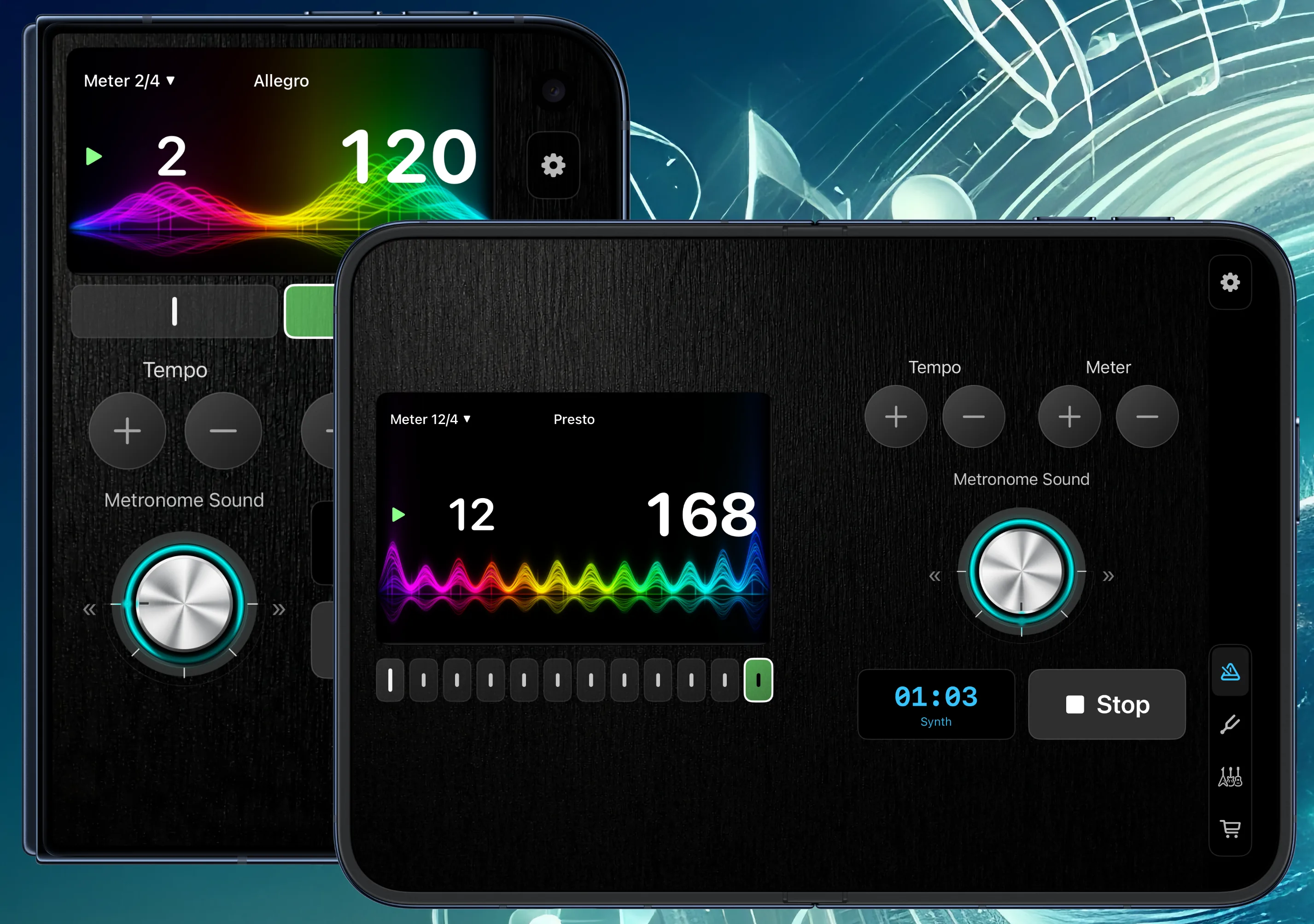
The Metronome tab is where you'll spend most of your time. From top to bottom:
- The display. The meter (Meter 4/4 ▼) is at the top left, the tempo marking (such as Allegro) in the middle and the settings gear on the right. Below them are the beat count and the tempo in BPM, with a beat visual running along the bottom.
- The beat editor. One box for each beat of the bar. The highlighted box follows the beat as it plays.
- Tempo and Meter. A + and − button for each.
- Metronome Sound. The dial that picks the click.
- The clock. How long the current run has been going, with the sound's name underneath.
- Start / Stop.
The tab bar opens the Tuner, the Guitar suite and the Store.
Start and Stop
Tap Start. The metronome begins on beat 1 and the clock starts counting. Tap Stop to finish; the clock holds your time until the next run, which starts it again from zero.
Three things worth knowing:
- It keeps playing when you lock your screen or switch to another app.
- It plays alongside other audio. Start a song or a backing track in another app, then start Metronome, and you'll hear both.
- It plays even when your iPhone is set to silent, so use the volume buttons to set the level.
Set the Tempo
Metronome runs from 30 to 240 BPM (beats per minute). There are three ways to set it.
The + and − buttons. Each tap moves the tempo by 1 BPM. Hold a button down and, after a moment, it keeps going at about a dozen BPM a second.
Tap tempo. Tap the big BPM number in time with the music, or with the pulse in your head. It changes colour and counts down the taps it still needs (Tap 2 more). After the third tap the tempo is set, and every tap after that refines it. Metronome averages your last few taps and ignores one that's way off, such as a missed or doubled tap, so you don't have to be perfect. Pause for more than two seconds and your next tap starts a fresh count.
Tempo markings. The word at the top of the display is the tempo marking for the current tempo. Tap it to jump: Next Tempo Marking moves up to the start of the next range (from Prestissimo it wraps back to Largo), or pick any marking from the list. Tempo markings are a guide rather than a strict standard, and these are the ranges Metronome uses:
| Marking | Tempo |
|---|---|
| Largo | 30–59 BPM |
| Larghetto | 60–65 BPM |
| Adagio | 66–75 BPM |
| Andante | 76–107 BPM |
| Moderato | 108–119 BPM |
| Allegro | 120–167 BPM |
| Presto | 168–199 BPM |
| Prestissimo | 200–240 BPM |
Change the Time Signature
Metronome has 23 time signatures.
- Meter + and − step through 1/4 to 12/4, one beat at a time, wrapping round at either end.
- Tap Meter 4/4 ▼ on the display for the full list, which adds 1/2, 2/2 and 4/2, plus 3/8, 6/8, 7/8, 8/8, 9/8, 10/8, 11/8 and 12/8.
You can change the meter while it's playing; the metronome carries on from beat 1 of the new meter.
In the eighth-note meters, Metronome clicks every eighth note, so 6/8 gives six clicks a bar. Set the BPM for the eighth-note pulse: a piece in 6/8 with two dotted-quarter beats at 60 needs 180 BPM.
Accent, Soften or Mute Each Beat
Each box in the beat editor is one beat. Tap a box to cycle it through three states:
- Accent (a tall bar): the louder click.
- Normal (a short bar): the softer click.
- Mute (a speaker with a slash): no sound, but the beat still counts.
Beat 1 starts out accented and the rest normal. Changes take effect on the next beat, so you can edit while it plays, and each time signature keeps its own pattern, so setting up 6/8 won't touch your 4/4.
A few patterns to try:
- 6/8: accent beats 1 and 4 to hear the two big beats of the bar.
- Backbeat: in 4/4, mute beats 1 and 3 and accent 2 and 4, where a drummer's snare falls. Practising against just 2 and 4 is a classic way to tighten your groove.
- Odd meters: in 7/8, accent beats 1, 3 and 5 for a 2+2+3 feel.
Choose a Sound
Tap the Metronome Sound dial to step through the five sounds: Wood, Metal, Synth, Retro and Silent. The current sound's name shows under the clock, and each sound has its own accent and normal clicks.
Silent turns the click off and leaves just the visuals, which is handy in a quiet room or when you'd rather watch the beat than hear it.
See the Beat
Tap the gear on the display to open Settings. The Visuals section controls what the display does.
Beat Visual picks the animation:
- Ticks: one mark per beat.
- Heart Rate: a heart-rate trace across the bar. This is the default.
- Orbit (Full Version): a light laps the panel once per bar.
- Pendulum (Full Version): a weighted arm swinging on the beat.
- Neon Waves (Full Version): glowing, multi-colour waves that swell on every beat. It needs an A13 chip or later (iPhone 11, iPhone SE 2nd generation, iPad 9th generation and newer), and isn't offered on older devices.
Panel Theme colours the display. Classic green is free; Phosphor, Ice, Ember and Mono come with the Full Version.
Flash on Beat pulses the whole panel on every beat. Above 150 BPM it eases off so it never becomes a strobe. Choosing Orbit turns the flash off, because Orbit is its own beat signal, but you can switch it back on.
Practice Tools
Keeping time is the start. The Practice section of Settings has four tools for testing whether you can hold it.
Count-In
Count-In plays 1 or 2 bars at the start of every run that always sound, whatever Bar Muting is set to, so an exercise never begins on silence. It's free.
Bar Muting (Full Version)
Bar Muting plays some bars, then drops the click for others while the beat carries on silently. When the click comes back, you'll hear straight away whether you stayed in time. Set:
- Bars to play: 1, 2, 4 or 8
- Bars to drop: Off, 1, 2, 4 or 8
For example, with a 1-bar count-in, play 4 and drop 4: bar 1 is the count-in, bars 2–5 click, bars 6–9 are silent, bars 10–13 click, and so on. Start by dropping a single bar, and work up to dropping as many as you play.
Tempo Ramp (Full Version)
Tempo Ramp speeds the metronome up while you play, so you never have to reach for the controls. Turn on Ramp Tempo, then set:
- Add: +1, +2, +5 or +10 BPM
- Every: 2, 4, 8 or 16 bars
- Up to: 100, 120, 140, 160, 180, 200 or 240 BPM
The ramp counts from the tempo you pressed Start at and holds once it reaches the ceiling. A ceiling below your starting tempo is ignored, so a ramp never slows you down.
For example, start at 80 BPM in 4/4 and add 5 every 8 bars up to 120. The tempo climbs through 85, 90, 95 and so on, and reaches 120 after 64 bars, about two minutes and forty seconds in. It's a good way to work on a hard passage: start where you can play it cleanly and let the metronome raise the bar a little at a time.
Presets and Setlists (Full Version)
A preset saves the metronome's whole setup: tempo, meter, accents, sound, bar muting (including the count-in) and tempo ramp. Visuals and themes aren't included.
- Set the metronome up for a song.
- Open Settings, tap Presets, then tap Save Current Settings.
- Give it a name and tap Save.
- Repeat for each song. You can save up to 50.
Tap a preset to load it. The list is your setlist: tap Edit to drag the presets into running order, and swipe left on one to Rename or Delete it.
Once a preset is loaded, a setlist bar appears on the main screen with its name and place in the list (such as 2 of 5). Tap ‹ or › to move to the previous or next song (it wraps round at the end), or tap the name to open your presets. If you change something after loading, a dot appears next to the name. Tap ↺ to put the preset back the way you saved it, or swipe right on it in the Presets list and tap Update to keep your changes.
A Simple Practice Routine
Put the tools together for a passage you're learning:
- Warm up at a tempo where you can play it cleanly, with accents on the strong beats.
- Push the tempo with a gentle Tempo Ramp, such as +2 every 4 bars, and note where it starts to fall apart.
- Test your time back at a comfortable tempo with Bar Muting, starting at play 4, drop 1.
- Save it as a preset, so tomorrow's session starts in one tap.
Tune Up with the Tuner
The Tuner tab is a chromatic tuner that listens through your device's microphone. It's a separate in-app purchase and also comes with the Full Version.
- Tap Start Listening, and allow microphone access the first time.
- Play a single note and let it ring.
- Read the note name and octave (such as A2), the frequency in Hz, and the meter below it: left of centre is Flat, right is Sharp, and the cents reading shows how far off you are.
- Tune until the status reads In Tune (within 5 cents).
The Signal and Input Level readings show whether the tuner can hear you clearly. A clean, sustained note close to the microphone works best. When you tap Stop Listening, the last note stays on screen as Last Hit. Starting the tuner stops the metronome, and the tuner is set to A = 440 Hz.
If the tuner can't hear anything, check that Metronome has microphone access; the app offers a shortcut to Settings.
Learn with Guitar Suite
The Guitar tab is a toolkit for guitarists that comes with the Full Version. It has four parts: Chords, Scales, Play and Options.
Chords. Pick a Root (any of the 12 notes) and a Chord: Major, Minor, 7, Maj7, m7, 5, 6, add9, 9, Maj9, m9, 11, 13, sus2, sus4, dim or aug. The fretboard shows where your fingers go, and the arrows step through different shapes for the same chord, with the frets for each string spelled out. Drag across the strings to strum it.
Scales. Pick a root and one of 12 scales: Major, Natural Minor, Harmonic Minor, Melodic Minor, Pentatonic Major, Pentatonic Minor, Blues, Dorian, Phrygian, Lydian, Mixolydian or Chromatic. Every note of the scale appears on the fretboard, with the notes listed above it and the root highlighted.
Play. Practise chord changes against the beat. Pick a progression:
- I VI IV V: C, Am, F, G
- I II IV V: C, Dm, F, G
- I III IV V: C, Em, F, G
- Circle of 5ths: E, A, D, G, C
Tap Start Metronome to run the progression with the click, one chord per bar at the metronome's tempo and meter, or Play Strum to hear the chords without it. Tap Chord strums the current chord, and Previous and Next step through the progression by hand. Set the tempo and meter on the Metronome tab first.
Options. Choose a fretboard skin, such as Rosewood, Maple or Carbon, and a tuning: Standard, Drop D, Half-Step Down, Open D, Open G or DADGAD. The fretboard and chord shapes update to match.
On Apple Watch
Metronome's Apple Watch app puts the beat on your wrist. Turn the Digital Crown to set the tempo, tap Start, and feel a tap on every beat, with a stronger one on beat 1. You can pick the meter and turn the haptics and the click on or off, and the tempo and meter stay in step with your iPhone.
On iPad and iPhone Duo
On iPad, Metronome uses a larger layout. On smaller iPads held in landscape, the metronome screen splits into two columns so everything fits.
On iPhone Duo:
- Closed, Metronome uses the phone layout, with the tabs and the settings gear in a strip down the side.
- Open, the metronome splits at the fold: the display and beat editor on the left, and Tempo, Meter, the sound dial, the clock and Start on the right. The Tuner splits the same way.
- Open and held upright, it uses the iPad layout.
Free and Full Version
| Feature | Free | Full Version |
|---|---|---|
| Metronome from 30 to 240 BPM, tap tempo and tempo markings | Yes | Yes |
| 23 time signatures and per-beat accents | Yes | Yes |
| Five sounds, including Silent | Yes | Yes |
| Ticks and Heart Rate visuals, Classic theme and Flash on Beat | Yes | Yes |
| Count-In | Yes | Yes |
| Apple Watch app | Yes | Yes |
| Bar Muting, Tempo Ramp, and Presets and setlists | No | Yes |
| Orbit, Pendulum and Neon Waves, plus four more panel themes | No | Yes |
| Tuner | Separate purchase | Yes |
| Guitar Suite | No | Yes |
| Ads | Shows ads | No ads |
The Store tab has the Full Version, which unlocks everything and removes ads, as well as Remove Ads and the Tuner on their own. To try everything first, watch a rewarded ad for a 30-minute unlock. If you've bought before, tap Restore Purchases.
Ready to practise? Download Metronome free on the App Store, or see everything it does on the Metronome product page.

Metronome
4.6Put Metronome to work
Get Metronome on your iPhone and iPad.
Take it with you