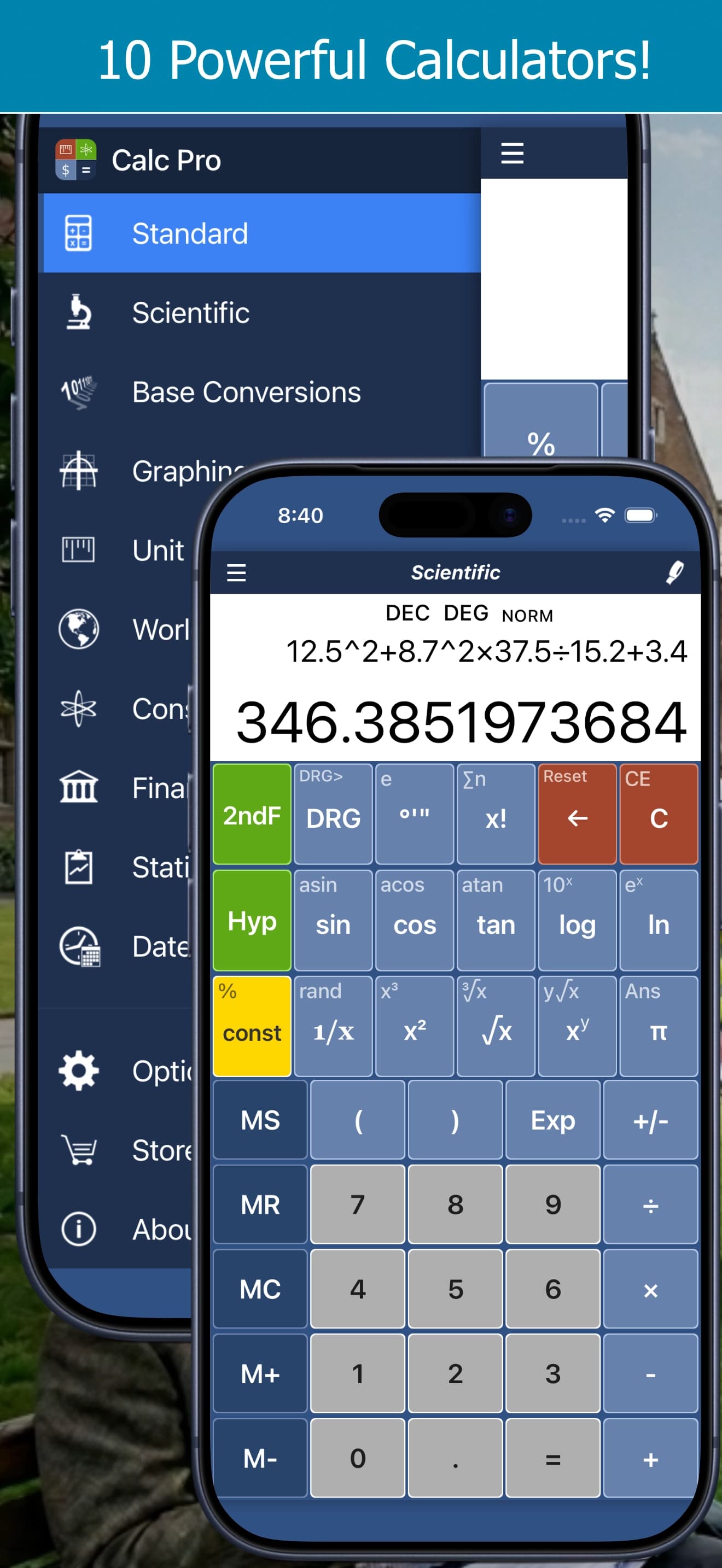
Standard Calculator Guide: Everyday Math, Percentages and Tax
Master everyday math with Calc Pro's standard calculator: percentages, tax keys, memory and chain calculations, with practical examples.
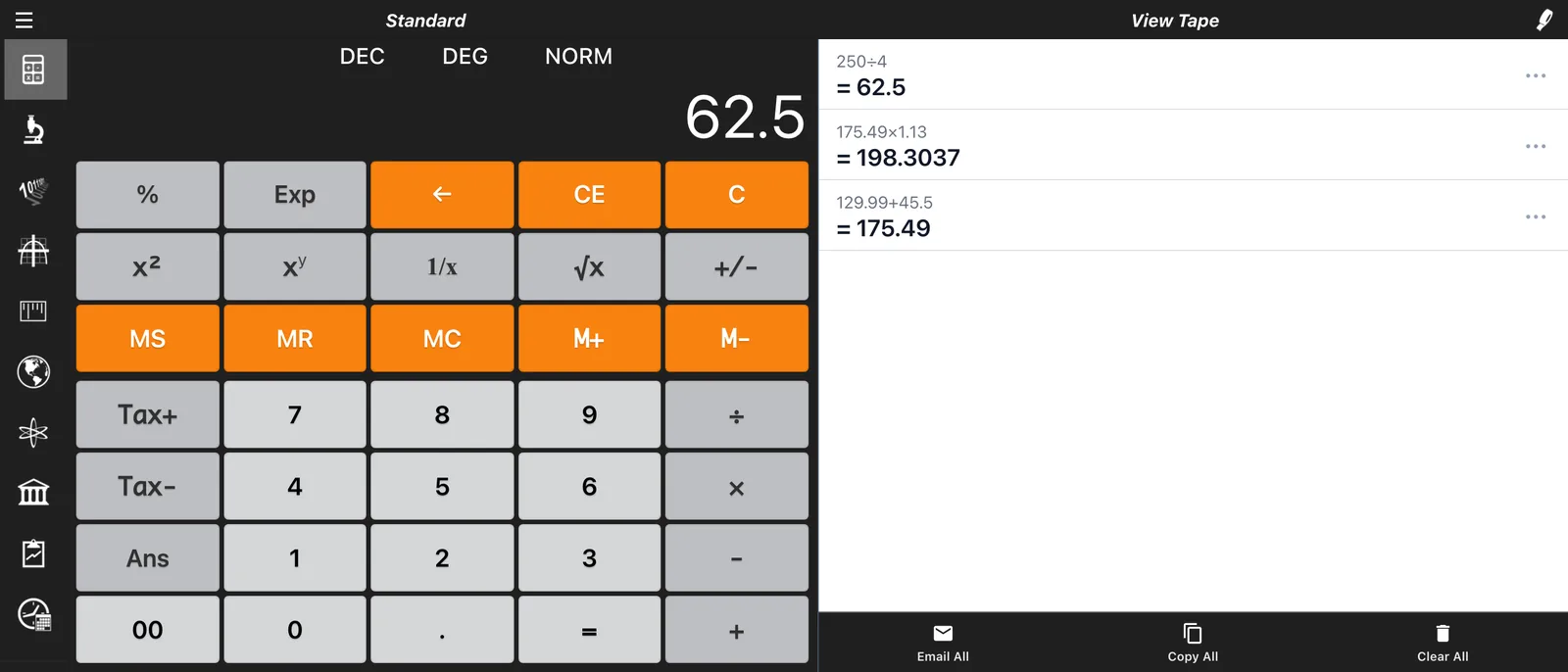
The Standard Calculator in Calc Pro is your go-to tool for everyday arithmetic. While it may look simple, it's packed with features that make daily calculations fast and accurate.
Overview
The Standard Calculator provides:
- Basic arithmetic (+, −, ×, ÷)
- Percentage calculations
- Memory functions
- Chain calculations
- Order of operations support
The Interface
Display Area
- Shows your current entry
- Displays running calculations
- Shows memory indicator when active
Number Pad
- Numbers 0-9
- Decimal point
- Positive/negative toggle (+/−)
Operators
| Button | Operation |
|---|---|
| + | Addition |
| − | Subtraction |
| × | Multiplication |
| ÷ | Division |
| = | Equals/Calculate |
Special Buttons
| Button | Function |
|---|---|
| C | Clear all |
| CE | Clear entry (current number only) |
| ⌫ | Backspace (delete last digit) |
| % | Percentage |
| ± | Change sign |
| Tax+ | Add tax at your tax rate |
| Tax− | Remove tax from a price |
| 00 | Enter two zeros at once |
| Ans | Recall the last answer |
Tax+ and Tax−
Set your sales tax rate once in Options → Calculator → Tax rate (it's 10% until you change it). Then:
- Tax+ adds tax to the number on the display. With a 13% rate,
100Tax+ gives113 - Tax− removes tax from a price that already includes it. With a 13% rate,
113Tax− gives100
Basic Arithmetic
Addition
Example: 125 + 89
- Enter:
125 - Press: +
- Enter:
89 - Press: =
- Result: 214
Subtraction
Example: 500 − 175
- Enter:
500 - Press: −
- Enter:
175 - Press: =
- Result: 325
Multiplication
Example: 24 × 15
- Enter:
24 - Press: ×
- Enter:
15 - Press: =
- Result: 360
Division
Example: 144 ÷ 12
- Enter:
144 - Press: ÷
- Enter:
12 - Press: =
- Result: 12
Chain Calculations
Perform multiple operations in sequence:
Example: 10 + 20 − 5 × 2
- Enter:
10 - Press: +
- Enter:
20 - Press: −
- Enter:
5 - Press: ×
- Enter:
2 - Press: =
- Result: 50 (or depends on order of operations mode)
Note: Calc Pro respects order of operations (PEMDAS/BODMAS):
- Multiplication and division first
- Addition and subtraction second
Percentage Calculations
The % button is versatile for different calculations:
What is X% of Y?
Example: What is 15% of 200?
- Enter:
200 - Press: ×
- Enter:
15 - Press: %
- Result: 30
Add X% to Y (Tax/Tip)
Example: Add 8% tax to $50
- Enter:
50 - Press: +
- Enter:
8 - Press: %
- Result: 54 ($50 + $4 tax)
Subtract X% from Y (Discount)
Example: 25% off $80
- Enter:
80 - Press: −
- Enter:
25 - Press: %
- Result: 60 ($80 − $20 discount)
Percent Change
Example: What percent is 75 of 100?
- Enter:
75 - Press: ÷
- Enter:
100 - Press: %
- Result: 75%
Memory Functions
Store and recall values during complex calculations:
| Button | Function |
|---|---|
| MS | Memory Store - saves current value |
| MR | Memory Recall - retrieves stored value |
| MC | Memory Clear - erases memory |
| M+ | Memory Add - adds current value to memory |
| M− | Memory Subtract - subtracts from memory |
Example: Calculate Total with Memory
Calculate (25 × 4) + (30 × 3)
- Enter:
25 × 4 =→ 100 - Press: MS (store 100)
- Enter:
30 × 3 =→ 90 - Press: M+ (add 90 to memory)
- Press: MR → 190 (total)
Example: Running Total
Keep a running total of expenses:
- Enter first expense:
45.99 - Press: MS
- Enter next expense:
23.50 - Press: M+
- Enter next expense:
12.75 - Press: M+
- Press: MR → 82.24 (total)
Tap the display at any time to see what's in memory (Calc Pro 7.0.3 and later).
Advanced Memory: Ten Memories
Need to keep more than one number? Open the side menu (☰), tap the gear icon, and under Calculator set Advanced memory to On. You now have ten memories, numbered 0 to 9:
- STO then a digit stores the display in that memory.
- RCL then a digit recalls it.
- M1, M2 and M3 add the display to memories 1, 2 and 3, for up to three running totals.
Example: Reuse an Exchange Rate
- Enter:
1.37, press STO, then 0 (memory 0 holds the rate) - Enter:
250 ×, press RCL, then 0, then = → 342.5 - Enter:
80 ×, press RCL, then 0, then = → 109.6
Example: Two Running Totals
- Enter:
12.40, press M1 (business) - Enter:
8.25, press M2 (personal) - Enter:
30.15, press M1 - Press: RCL, then 1 → 42.55 (business total)
- Press: RCL, then 2 → 8.25 (personal total)
The Standard keypad has no 2ndF key, so to take an amount out of M1, M2 or M3, press +/- before the M key. See Calculator Memory Keys Explained for every memory key, with more examples.
Decimal Operations
Entering Decimals
Example: 3.14 × 2
- Enter:
3.14 - Press: ×
- Enter:
2 - Press: =
- Result: 6.28
Rounding Behavior
Calc Pro displays results with appropriate precision:
- Whole numbers: No decimals shown
- Decimal results: Significant digits displayed
- Very small/large numbers: Scientific notation
Clear and Correction
Clear All (C)
Clears everything and starts fresh.
Clear Entry (CE)
Clears only the current number, keeping the operation.
Example: Correct a mistake
- Enter:
123 - Press: +
- Enter:
456(oops, meant 654!) - Press: CE (clears 456)
- Enter:
654 - Press: =
- Result: 777
Backspace (⌫)
Deletes the last digit entered.
Example: Fix a typo
- Enter:
1234 - Press: ⌫ → displays
123 - Enter:
5→ displays1235
Sign Change (±)
Toggle between positive and negative:
Example: Enter −50
- Enter:
50 - Press: ±
- Display shows:
−50
Example: Subtract a negative
- Enter:
100 - Press: −
- Enter:
25 - Press: ± (makes it −25)
- Press: =
- Result: 125 (100 − (−25) = 125)
Practical Everyday Uses
Shopping Calculations
Unit Price Comparison
Which is cheaper: 12 oz for $3.49 or 16 oz for $4.29?
- 12 oz:
3.49 ÷ 12 =$0.29/oz - 16 oz:
4.29 ÷ 16 =$0.27/oz - The 16 oz is better value!
Sale Price
40% off a $75 item:
75 − 40% =$45
Tax Calculation
$50 item with 8.5% tax:
50 + 8.5% =$54.25
Restaurant Math
Tip Calculation
$65 bill, 20% tip:
65 × 20% =$13 tip- Total:
65 + 13 =$78
Bill Splitting
$156 total, 4 people:
156 ÷ 4 =$39 each
Home & Finance
Mortgage Check
Is $2,400/month within 28% of $9,000 gross income?
9000 × 28% =$2,520 (maximum)- Yes, $2,400 is within budget!
Fuel Economy
280 miles on 10 gallons:
280 ÷ 10 =28 mpg
Recipe Scaling
Recipe serves 4, need to serve 6:
- Multiplier:
6 ÷ 4 =1.5 - If recipe calls for 2 cups:
2 × 1.5 =3 cups
Quick Conversions
Celsius to Fahrenheit (Approximate)
Multiply by 2, add 30 (rough estimate):
- 20°C:
20 × 2 + 30 =70°F (actual: 68°F)
Kilometers to Miles (Approximate)
Divide by 1.6:
- 100 km:
100 ÷ 1.6 =62.5 miles
Tips for Efficient Use
1. Use Memory for Multi-Part Calculations
Don't write down intermediate results—store them in memory!
2. Chain Operations for Speed
Keep calculating without pressing = until the end of a sequence.
3. Double-Check with Estimation
Before pressing =, estimate the answer:
- 48 × 52 ≈ 50 × 50 = 2,500 (actual: 2,496) ✓
4. Use CE Instead of C
If you make a typo, CE saves your work-in-progress.
5. Leverage Percentage for Speed
Use the % button instead of manual conversion:
- Instead of:
× 0.15 - Use:
× 15 %
Common Mistakes to Avoid
1. Forgetting Order of Operations
Remember: × and ÷ before + and −
2. Clearing Too Much
CE clears entry; C clears everything. Know which you need.
3. Missing Decimals
Always verify decimal placement in financial calculations.
4. Sign Errors
Double-check positive/negative, especially in subtraction chains.
Conclusion
Calc Pro's Standard Calculator handles all your everyday math needs with speed and accuracy. Master these features, and you'll calculate faster and more confidently in daily life.

Calc Pro
4.6 · 4,712 ratingsPut the Standard Calculator to work
Use it free in your browser right now, or take Calc Pro with you on iPhone and iPad.
Take it with you




Free with ads · In-app purchase unlocks the full Pro Premium version