RPN and Calculator Modes: Expression, Algebraic, Direct Algebraic, Normal and RPN
Learn Calc Pro's five entry modes, including HP-style RPN. See how each one handles 2 + 3 × 4, functions and brackets, and pick the right one.
Not every calculator expects you to type the same way. Calc Pro gives you five entry modes, from simple left-to-right math to the stack-based Reverse Polish Notation (RPN) that engineers love. This guide explains each one, with the same examples, so you can pick the mode that suits you.
Choosing a Mode
Open Options → Calculator → Calculator mode and pick one:
| Mode | How it works | 2 + 3 × 4 |
|---|---|---|
| Normal | Calculates left to right as you go | 20 |
| Algebraic | Order of operations; number first, then function | 14 |
| Direct Algebraic | Order of operations; functions as written | 14 |
| Expression | Type the whole calculation, then press = | 14 |
| RPN | Numbers first, then the operation | 14 |
Normal: Left to Right
Normal mode works like a basic pocket calculator: each operation happens as soon as you press the next one.
Example: 2 + 3 × 4
- Press
2+3 - Press ×: the display shows
5, because 2 + 3 has already been calculated - Press
4=: the result is20
Normal mode is great for running totals, like adding up a shopping bill, but it ignores the usual order of operations.
Algebraic: Order of Operations
Algebraic mode follows standard math rules, doing × and ÷ before + and −, and it supports brackets.
Example: 2 + 3 × 4
- Press
2+3×4= - The result is
14
Functions act on the number you've already entered:
Example: sin(30°)
- Make sure the display shows DEG
- Press
30, then sin - The result is
0.5
Direct Algebraic: Write It as You Read It
Direct Algebraic also follows the order of operations, but you press a function before its number, the way it's written on paper.
Example: sin(30°)
- Press sin, then
30 - Press =: the result is
0.5
Example: √16 + 2
- Press √, then
16 - Press +
2=: the result is6
This mode is popular with students because calculations match the textbook.
Expression: See the Whole Calculation
In Expression mode you type the entire calculation, see all of it on the display, and press = when you're ready.
Example: area of a half circle with radius 7.5
- Type π ×
7.5x² ÷2 - The display shows
π×7.5²÷2 - Press =: the result is
88.35729338221
Because you can see everything you've typed, it's easy to spot a mistake before you press =. Every expression is also saved to the tape.
RPN: Reverse Polish Notation
RPN is the stack-based system made famous by HP calculators. You enter the numbers first, then the operation, so you never need brackets or an = key.
How the Stack Works
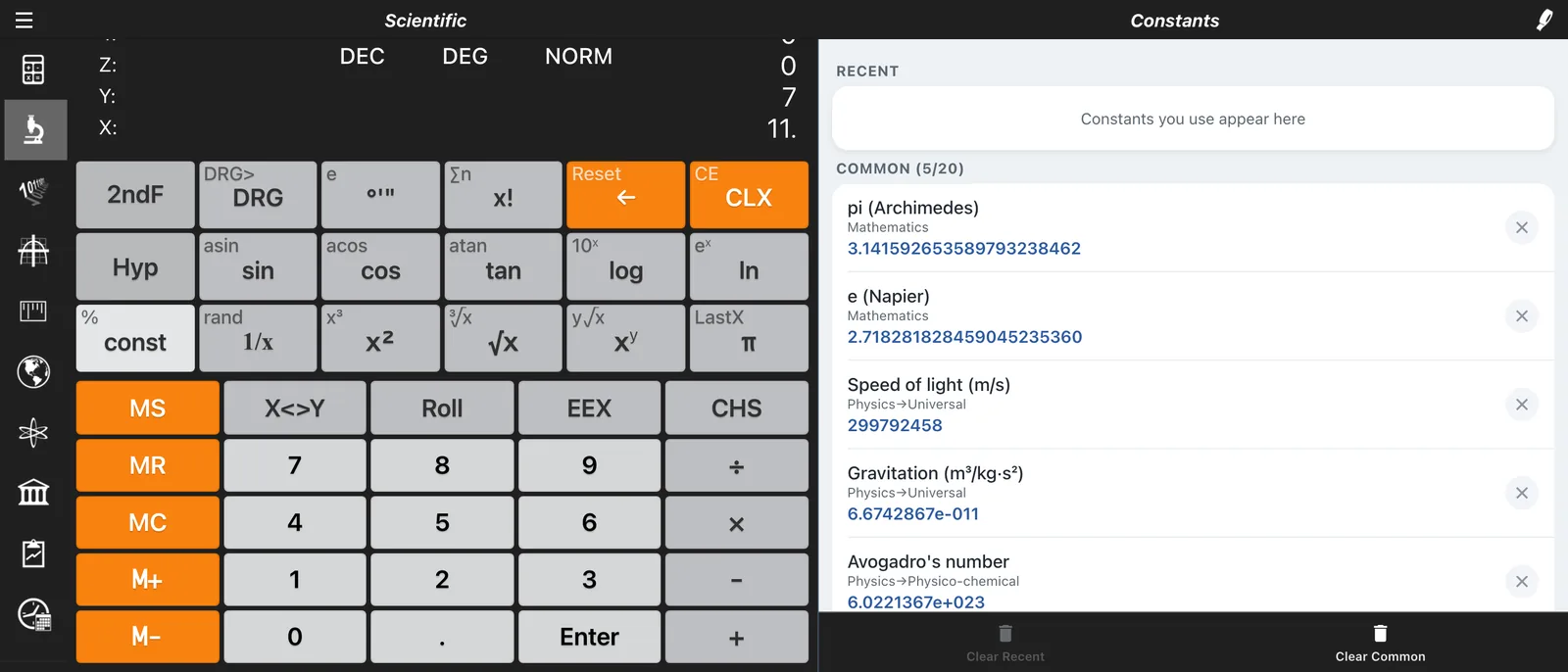
Numbers wait on a stack. With the default 4-level stack, the levels are called X (the one on the display), Y, Z and T. You can change the stack size to 2, 4, 5, 10 or 50 in Options → Calculator → RPN stack size.
- Enter (which replaces the = key) pushes the number on the display up the stack, ready for the next one
- An operation like + or × combines X and Y and leaves the result in X
- A one-number function like x² or √ works on X straight away
RPN Keys
| Key | What it does |
|---|---|
| Enter | Push the displayed number onto the stack |
| X<>Y | Swap the bottom two values |
| R Up | Rotate the stack up |
| Roll | Rotate the stack down |
| Drop | Remove the bottom value |
Example 1: 2 + 3 × 4
- Press
3Enter4×: the display shows12 - Press
2+: the result is14
Example 2: (3 + 4) × (5 + 6)
- Press
3Enter4+: the display shows7 - Press
5Enter6+: the display shows11, and 7 waits on the stack - Press ×: the result is
77
No brackets needed: the stack remembers the 7 while you work out the 11.
Example 3: √(3² + 4²)
- Press
3x²: the display shows9 - Press
4x²: the display shows16 - Press +: the display shows
25 - Press √: the result is
5
Which Mode Should I Use?
- Quick totals and everyday math: Normal
- Students: Direct Algebraic or Expression, to match the textbook
- Used to a classic scientific calculator: Algebraic
- Engineers and HP fans: RPN
Switching is free and instant, so try a couple. For the rest of the settings, see Customizing Calc Pro.
Next: Pay off your mortgage faster with the Mortgage Calculator

Calc Pro
4.6 · 4,712 ratingsPut the Scientific Calculator to work
Use it free in your browser right now, or take Calc Pro with you on iPhone and iPad.
Take it with you




Free with ads · In-app purchase unlocks the full Pro Premium version