Customize Calc Pro: Skins, Calculator Modes and Settings
Make Calc Pro your own: choose a button style and color, calculator mode, number format, separators, sounds, language and financial defaults.
Calc Pro works well straight out of the box, but a few minutes in Options makes it truly yours. This guide walks through every setting, then suggests setups for students, engineers and finance professionals.
Opening Options
Open the side menu with the menu icon (☰) and tap the gear icon near the bottom. Options is organized into three groups: General, Calculator and Financial.
General
Button Style
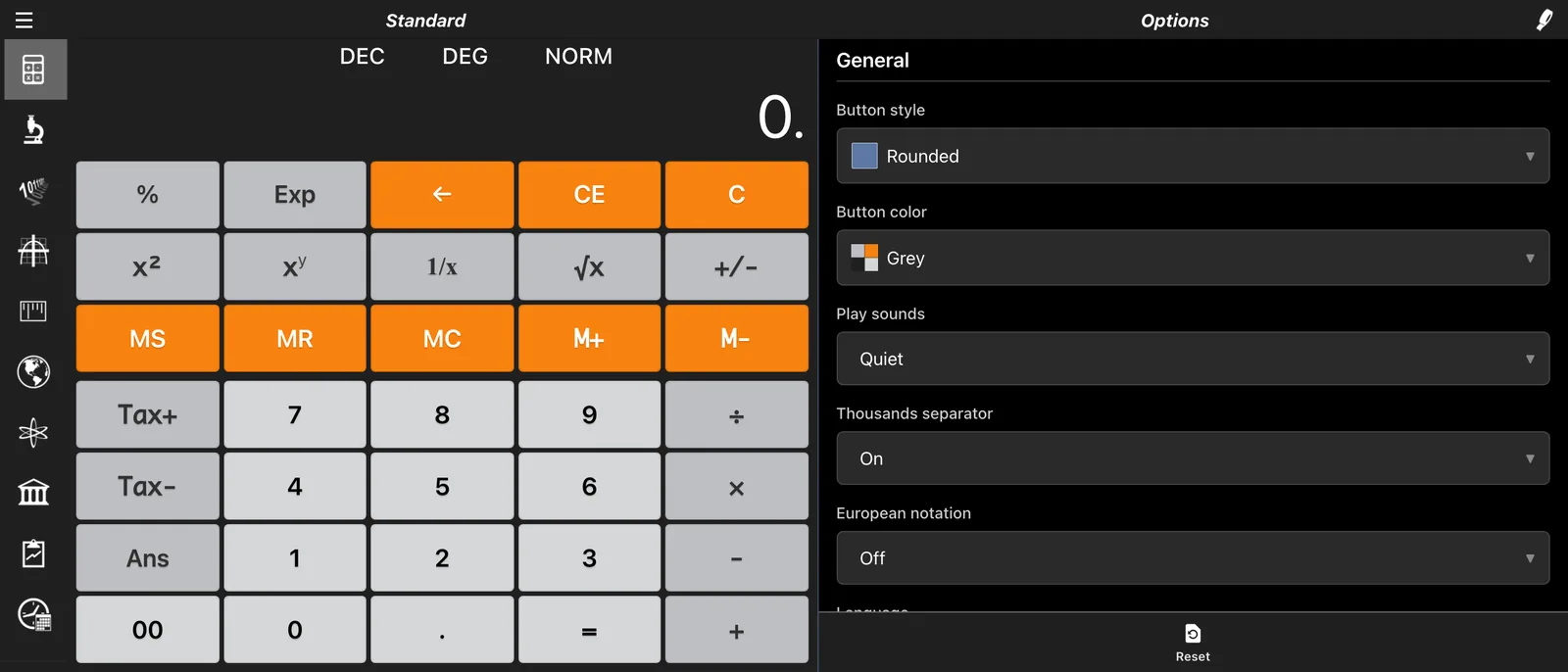
Choose how the keys look: Classic, Shine, Flat, Square, Glass or Rounded. The iPhone and iPad app also offers Liquid, a Pro Premium style.
Button Color
Pick a color scheme: Black, Blue, Light Blue, Brown, Grey, Green, Light Grey, Orange, Pink or White. Extra colors are available with Pro Premium in the app.
Sounds
Key clicks can be On, Quiet or Off.
Thousands Separator and European Notation
Turn on the thousands separator to show 1,234,567 instead of 1234567. European notation swaps the comma and the period, so one thousand and a half reads 1.000,5 instead of 1,000.5.
Language
Calc Pro speaks 12 languages: English, German, Spanish, French, Italian, Dutch, Portuguese, Russian, Japanese, Korean, and Simplified and Traditional Chinese. Default follows your device's language.
Calculator
Calculator Mode
This sets how you enter calculations. Each mode is explained with examples in RPN and Calculator Modes.
| Mode | Best for |
|---|---|
| Expression | Seeing the whole calculation as you type it |
| Algebraic | Classic scientific calculator entry |
| Direct Algebraic | Typing functions the way they're written (sin 30) |
| Normal | Simple left-to-right math, like a basic calculator |
| RPN | HP-style stack entry, with no brackets or = needed |
RPN Stack Size
In RPN mode, choose how many stack levels you want: 2 (X, Y), 4 (X, Y, Z, T), 5, 10 or 50.
Notation
This sets how results are displayed: Normal, Scientific, Engineering, Fractions or Fixed. With Fixed, use Fixed digits to choose from 2 to 10 decimal places. See Scientific Notation and Display Formats.
Advanced Memory
Turn this on for ten separate memories (0 to 9) in place of one. MS and MR become STO and RCL, which you follow with a digit key to pick the memory, and the other three memory keys become M1, M2 and M3 for quick running totals.
For example, 1.37 STO 0 keeps an exchange rate in memory 0, and 250 × RCL 0 = uses it (342.5) without retyping it. Tap the display to see all ten memories. See Calculator Memory Keys Explained for step-by-step instructions and more examples.
Tax Rate
This is the rate used by the Tax+ and Tax− keys on the Standard Calculator, and it starts at 10%. See the Standard Calculator guide for examples.
Conversion Buffer
This is the word size used by Base Conversions: Byte (8 bit), Word (16 bit), DWord (32 bit, the default) or Large (48 bit).
Financial
Payment Schedule (Mortgage)
This is the schedule the Mortgage worksheet starts with: monthly, semi-monthly, bi-weekly, weekly or bi-monthly, each with an accelerated option that pays the loan off faster. See the Mortgage Calculator guide.
End Period Payments (TVM)
This decides when Time Value of Money payments happen. Payments at the end of each period (an ordinary annuity) are the usual choice for loans and mortgages. Payments at the beginning of each period (an annuity due) suit rent and leases.
Reset
Reset returns every setting to its default, which is handy if a setting has you stuck.
Recommended Setups
For Students
- Calculator mode: Direct Algebraic or Expression, so calculations read like your textbook
- Notation: Normal
- Sounds: Quiet in class
For Engineers
- Notation: Engineering, so exponents line up with kilo, mega and milli
- Calculator mode: RPN with a 4-level stack, if you learned on an HP calculator
- Conversion buffer: match the word size of the system you're working on
For Finance
- Notation: Fixed, with 2 digits
- Thousands separator: On
- Payment schedule: the one your lender uses
- End period payments: On, for loans and mortgages
Tips
- Try a mode for a few days. Switching entry modes feels odd at first; give it time before deciding.
- Set your tax rate once. After that, Tax+ and Tax− handle sales tax in a single tap.
- Match your notation to the job. Fixed with 2 digits for money, Engineering for electronics, Fractions for measurements.
Next: Keep every key and mode at your fingertips with the Quick Reference Card

Calc Pro
4.6 · 4,712 ratingsPut Calc Pro to work
Use it free in your browser right now, or take Calc Pro with you on iPhone and iPad.
Take it with you




Free with ads · In-app purchase unlocks the full Pro Premium version